
Upon completing the registration form you will receive a confirmation email. Please click the link within the email to confirm your account (Figure 1).
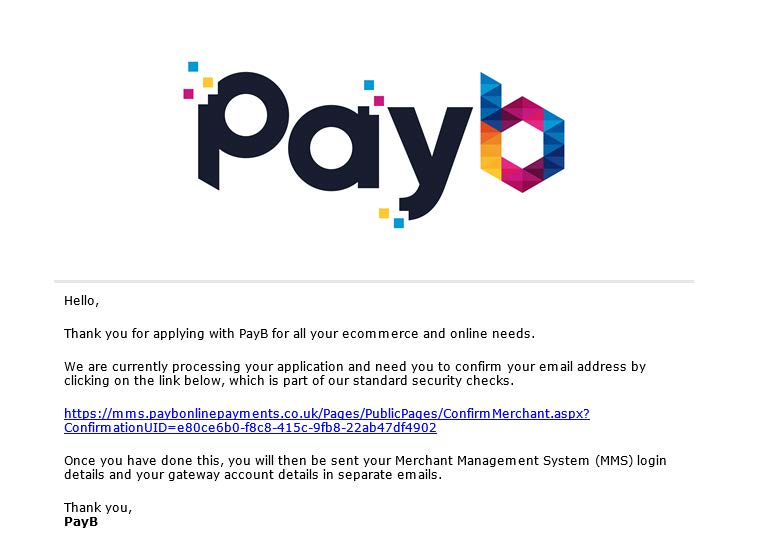
Figure 1
You will then see the following confirmation message (Figure 2):
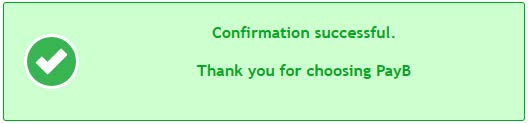
Figure 2
Once you have confirmed your account, you will receive a second email containing your MMS login details. A link to the log in page can be found at the foot of this email (Figure 3).
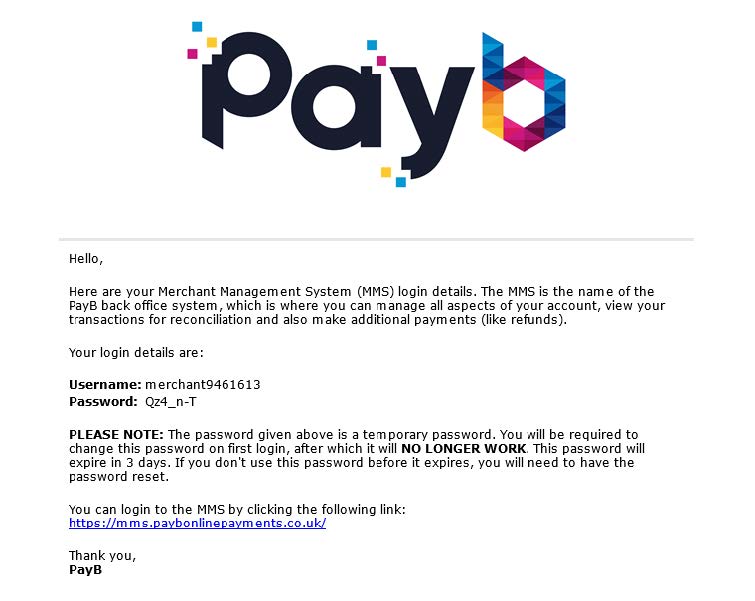
Figure 3
After clicking the link, you will see the following screen (Figure 4):
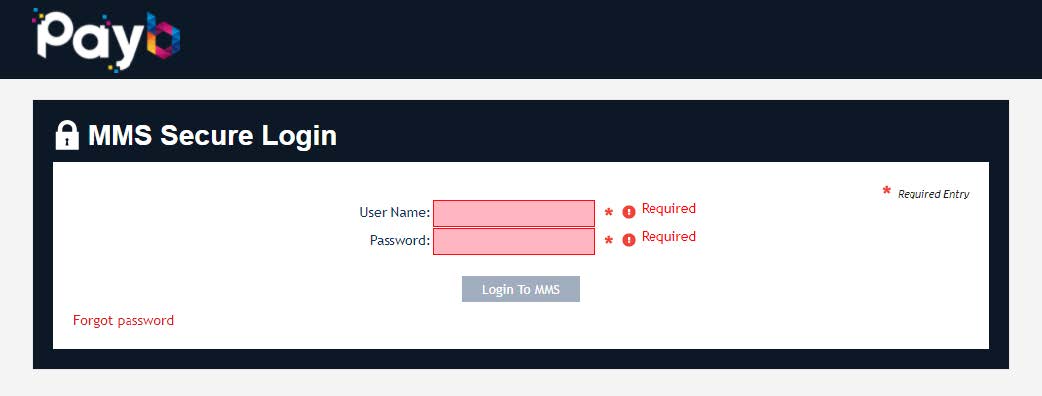
Figure 4
username will begin with the word ‘merchant’ followed by a string of numbers. Type in the temporary password exactly as it appears in the email (please note passwords are case sensitive) then click ‘Login to MMS’. If log in has been successful you will see the following message (Figure 5):
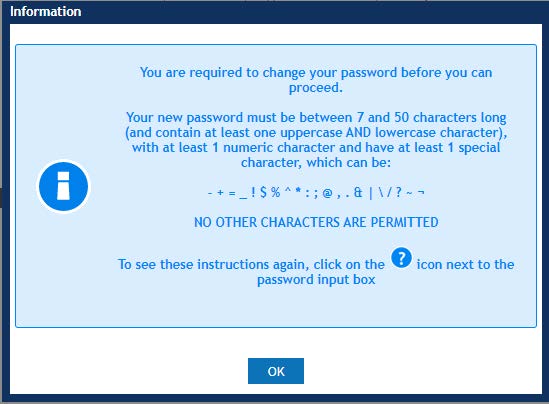
Figure 5
Upon clicking ‘OK’, you will be asked to change from your assigned temporary password to a more memorable “strong” password. Passwords must meet certain criteria. When entering your new password you will see an indicator, which will turn green when all the password criterion are met.
Additionally, on this screen you will also set your secret question. Once you select the secret question, please enter your password. Once all the required boxes are correctly entered shown by the green tick you can click change password (Figure 6).
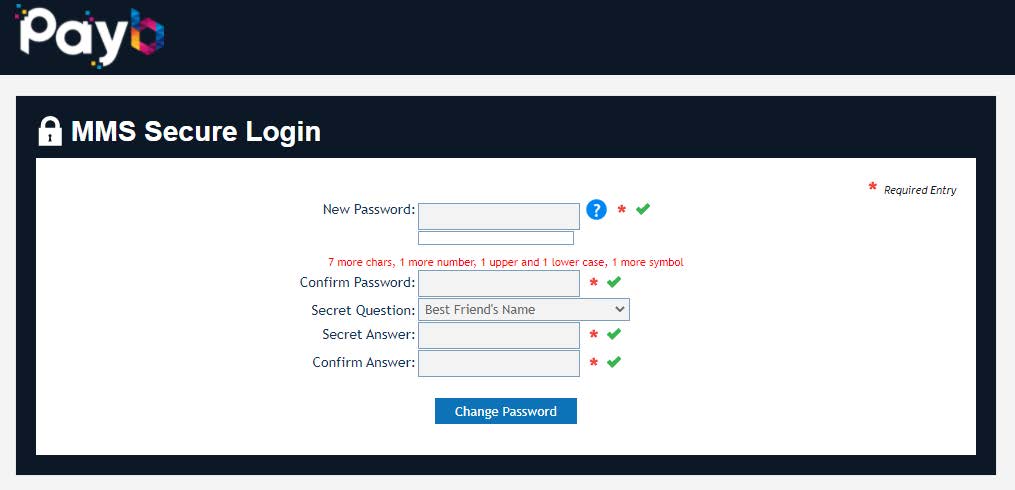
Figure 6
Please note that you will be required to change your password every 90 days. Your secret question can only be reset by contacting The ai Corporation by email at support@payb.co.uk or by calling
+44(0)20 8819 3470
After successfully changing your password, you will then find yourself on the MMS home page (Figure 7).
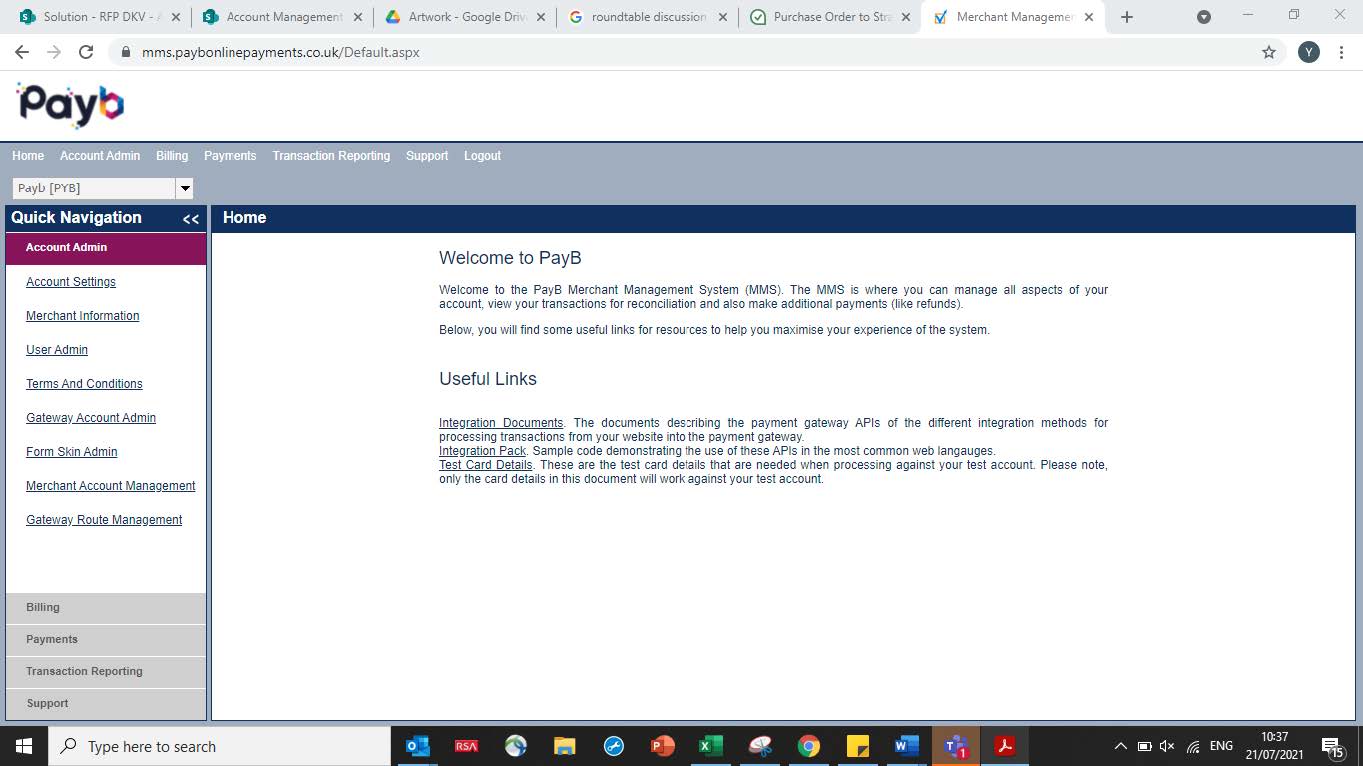
Figure 7